Claude Code is a tool you can open in a terminal beside your project. You can ask it to explain code, find a bug, or make a change. It can read files and, depending on your permission settings, edit them and run commands. That makes it useful, but it also means you should know which folder you opened and look at what it does.
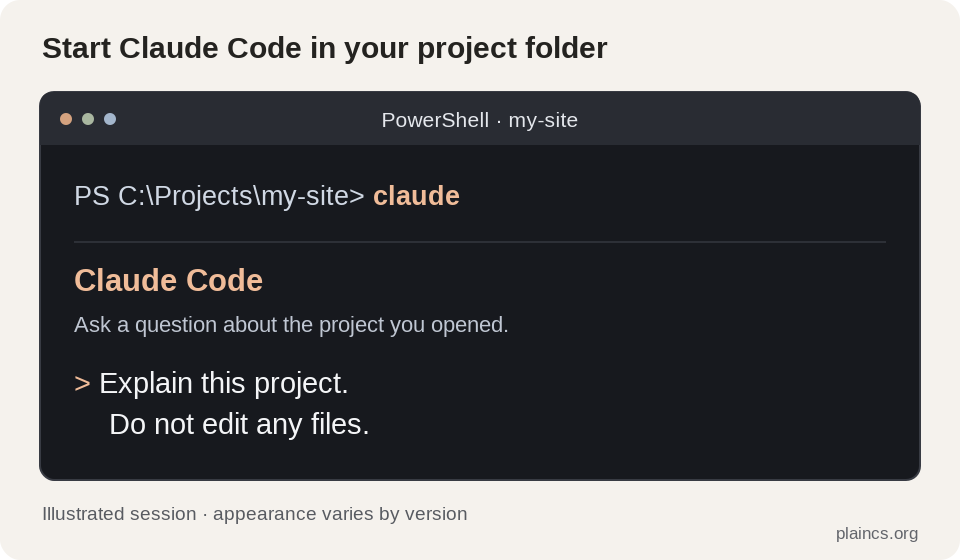
An illustration of a first session. The exact screen varies by version.
This guide takes you through one first session. You do not need to know many terminal commands. You do need a project folder, an internet connection, and an account that can use Claude Code. Anthropic lists a Claude Pro, Max, Team, or Enterprise subscription, a Claude Console account, or access through a supported cloud provider. Check its quickstart if you are unsure which account you have.
Install it
On Windows, open PowerShell. You can find it by opening Start and typing PowerShell. The prompt usually starts with PS. Anthropic’s native install command is:
irm https://claude.ai/install.ps1 | iexOn macOS or Linux, open a terminal and run:
curl -fsSL https://claude.ai/install.sh | bashThese commands download and run Anthropic’s installer. Check the command against the official installation page before running it, especially if you are reading this guide much later. On Windows, Anthropic also supports winget install Anthropic.ClaudeCode if you prefer WinGet; its setup page explains how that installation is updated. If you use WSL, run the Linux command inside WSL, not in PowerShell.
When installation finishes, open a new terminal window and type:
claude --versionYou should see a version number. If the terminal says it cannot find claude, first try a new terminal window. Then use Anthropic’s installation troubleshooting to check your PATH. On native Windows, Git for Windows is optional; without it, Claude Code can use PowerShell for shell commands. You do not need to install Git just to complete this first session.
Open it in the right folder
A terminal always has a current folder. Claude Code uses the folder where you start it as the project it will work with. If you start in the wrong place, it may be looking at the wrong files. Move to your project folder first. For example, in PowerShell:
cd "C:\path\to\your\project"
claude
Replace the example path with your real folder. The quotation marks matter when a folder name has spaces. On macOS or Linux, use a path from your own computer instead. When Claude Code opens for the first time, follow its sign-in steps in the browser. After sign-in, the session shows its current working directory. Check that it is the project you meant to open.
Start by asking a question that does not require a change:
Explain what this project does and where it starts. Do not edit any files.
This gives you a chance to see how Claude Code reads the project and describes it. If an answer seems doubtful, ask which files support it and read those files yourself. A confident explanation can still be wrong.
Make one small change
Once you understand the folder, give it a task you can check. For example:
Add a short paragraph to the README explaining how to start this project. Show me the change before doing anything else.
A useful request says what you want and how you will know it is right. “Improve this project” leaves too many decisions open. A small README edit gives you a clear first result. For code changes, you can ask Claude Code to run the project’s relevant check and tell you what passed or failed. Read the proposed command before allowing it to run.
Look at the changed lines before you keep them. Ask, “What files changed?” or use your editor’s diff view. If the result is not what you intended, explain what is wrong and ask for a correction. Claude Code can help produce a change; you still decide whether that change belongs in your project.
Keep control of the session
Claude Code has permission modes that decide which actions it can take without asking you. The mode may depend on your version and settings, so look at the mode shown in your session. Manual mode asks before file edits and most commands. Plan mode is useful when you want it to inspect the project and propose an approach before editing. In the terminal, Shift+Tab changes the session mode, and /permissions shows permission rules. Anthropic’s permissions guide explains the details.
Be clear about boundaries in your request. You can say, “Inspect only,” “Do not change the database,” or “Ask me before running commands.” Check the permission mode as well: a request describes your intention, while the mode controls what the tool may actually do. Keep passwords and other secrets out of your example prompts. Claude Code sends prompts and relevant context over the network to use the model; Anthropic explains account-specific handling in its data usage guide.
When you are done, type /exit inside Claude Code. Type /help if you forget a command. To continue your most recent conversation in the same project later, open a terminal in that project folder and run claude -c.
The basic habit is simple: open the right folder, ask for a small result, inspect the work, and only then move to a larger task. The official quickstart is the best place to check commands or features that may have changed since this guide was written.