3 Use the terminal with confidence
“The file is right there” is a common response to a file-not-found error. Both statements can be true. You may be looking at a folder in the editor while the command is looking in a different folder.
You need no previous terminal experience for this lesson. You need a practice folder containing reading-log; the project lesson explains that example. We will begin with commands that inspect your location, rather than modify your files.
3.1 A command runs somewhere
The terminal is the application that displays text and accepts input. The shell interprets commands. PowerShell, Bash, and Zsh are shells; a terminal can host any shell that is installed and supported there.
This lesson’s main examples use PowerShell. A command copied from a Bash tutorial is not automatically a PowerShell command. Even when a command name exists in both, its arguments or behavior can differ.
In PowerShell, enter:
Run these as two separate commands. The first reports your current folder. The second lists entries there. A listing may include files and subfolders; its contents depend on where the shell started.
Now navigate to your own cs-essentials-lab folder. Substitute its actual location for this illustrative path:
The path is quoted so its spaces, if any, stay inside one argument. -LiteralPath asks PowerShell to treat the supplied path literally instead of interpreting wildcard characters in it.
Do not copy a prompt such as PS C:\Users\Student> from a tutorial. It describes the shell’s state; it is not part of the command to enter.
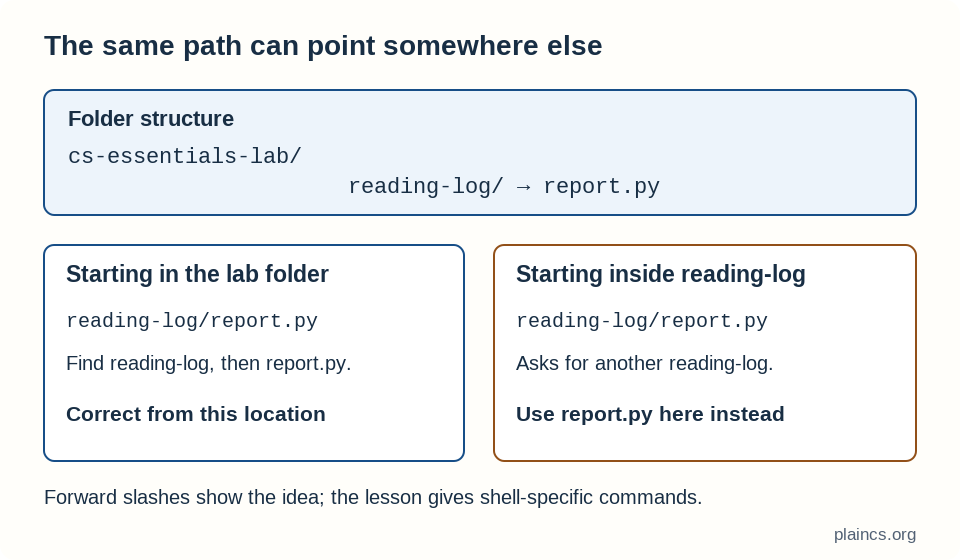
A relative path gets its meaning from a starting location. The same text can name different places from different folders.
3.2 Read a command as an instruction with parts
Consider this PowerShell command, while you are in cs-essentials-lab:
Get-Content is the command. -LiteralPath names a parameter. The quoted text supplies its value. The . means the current folder, so this asks to read books.csv inside its reading-log child.
An absolute path identifies a location without depending on the current folder. On Windows, it might start with C:\. A relative path starts from a context such as the current folder. Neither form is universally better; what matters is knowing which context a tool uses.
For macOS/Linux readers using Bash or Zsh, the equivalent inspection steps are separate examples:
These examples assume you already navigated to your own lab folder. Do not mix the two shells’ path and parameter syntax in a single command.
3.3 The result has more than one part
A command can produce ordinary output, error output, and a completion status. Seeing some text does not prove success; seeing no text does not prove failure.
After a PowerShell command, $? reports whether the most recent command succeeded. For a native executable, such as Python or Git, $LASTEXITCODE holds its process exit code. These values answer related questions, but they are not interchangeable; a PowerShell command does not generally reset $LASTEXITCODE for you.
In PowerShell, try this harmless Git inspection if Git is installed:
You should see an installed Git version and then 0 for successful completion. The exact version text varies. If git is not recognized, the shell has not successfully started Git; do not interpret an old $LASTEXITCODE value as the result of that failed lookup.
Some examples use > to save output. That is redirection. It can create or overwrite a file, so it is a change to your filesystem, not decoration around the command. Likewise, installing a package, removing a file, and sending a request to a service can have effects outside the text you see.
3.4 Try it: find the mismatch
From cs-essentials-lab, use Get-Content to inspect the example CSV. Then enter the child folder and inspect it again:
Why would Get-Content -LiteralPath '.\reading-log\books.csv' now point at the wrong place? What changes when you run Set-Location -LiteralPath '..'?
Check your reasoning
After entering reading-log, it is already your current folder. Adding another reading-log asks for a child folder with that name, giving a path like cs-essentials-lab\reading-log\reading-log\books.csv.
.. means the parent folder. Moving there changes the shell’s location back to cs-essentials-lab; it does not move or rename your files. From there, reading-log\books.csv is the appropriate relative path again.
When a command fails, first ask: Which shell am I using? Where am I? What are the arguments? What result did the tool report? Those four questions often reveal more than repeating the command with extra privileges.
You are ready to continue when you can explain a relative path from two different folders. Next, we will distinguish the Python program that runs your code from the packages it can import.
Official references: Get-Location, Get-Content, and PowerShell automatic variables.