5 Use Git you can explain
Saving a file preserves its latest contents. It does not tell you why you changed it or make it easy to compare that change with yesterday’s work. Git adds a history you can inspect.
You need Git installed and a small practice project for this lesson. The commands work in PowerShell or Bash when run inside that project. Use a folder you created for practice, not an existing assignment or a repository belonging to someone else.
5.1 Three places to keep straight
Your working tree is the collection of files you edit. The staging area records the contents you intend to include in the next commit. A commit records a snapshot of tracked content, together with information such as a message and author.
These are different states. Editing a file does not automatically put the new contents into the next commit. Staging it does not automatically create a commit. Creating a commit does not automatically upload it anywhere.
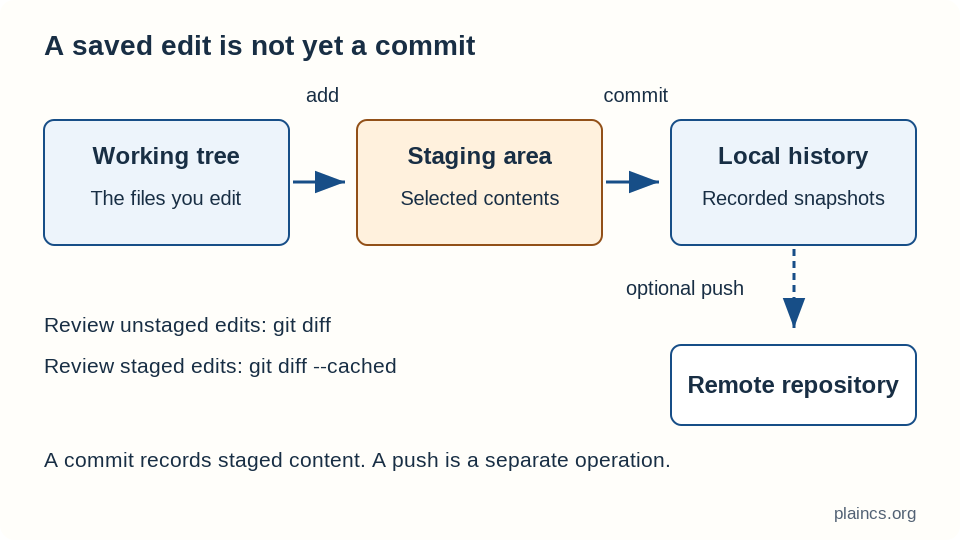
Git’s separate review points are useful because your folder may contain more than one kind of change. A README correction, a half-finished experiment, and private local configuration should not become one accidental upload.
5.2 Begin with a disposable folder
Use the reading-log folder from the project lesson. Confirm your terminal is there. If git status already reports a repository, pause: this exercise assumes you intended to create a new one in a separate practice area.
Create a .gitignore file in the editor containing:
The environment and Python caches can be regenerated. .env is a common local configuration filename that might contain secrets; our practice project does not need one. Ignoring a filename does not remove secrets already committed, and does not prevent every possible accidental inclusion.
Now initialize Git and inspect its view:
git init writes repository metadata inside this folder. The initial branch name and the exact status message depend on your Git configuration. Your source, data, and README should initially appear as untracked files.
In this lab, books.csv contains only the fictional rows shown in the course. A real project’s data may be personal, confidential, or unsuitable for version control. Review its purpose before staging it.
Stage only the four intended files:
The explicit names are a small habit with a large benefit: you can state exactly what you chose. git diff --cached shows the staged patch. For a new text file, it shows the content being introduced.
5.3 A commit is a decision about a snapshot
When the staged content is what you intended, record it:
Git requires an author identity. If it asks for one, configure a suitable name and email for this practice repository, using your own choices rather than copying these placeholders:
git config --local user.name "Your chosen name"
git config --local user.email "[email protected]"
Then retry the commit. These local settings apply to this repository. If you later publish commits, their author information can be visible to others; choose an appropriate address, such as your hosting provider’s privacy address if available.
Inspect the result:
The log should show your message beside a commit identifier. The identifier varies. If all intended files were recorded and nothing else changed, the status should report a clean working tree.
Now add one sentence to the README explaining the expected Books logged: 2 output. Save it, then inspect:
This compares unstaged changes with staged content for that file. You can read the exact sentence you are proposing before recording it. A useful commit message explains the change’s purpose; it does not need to sound impressive.
5.4 Local history is not an off-device backup
A remote is another repository location, often hosted by a service such as GitHub. A push sends commits to a configured remote when access and history allow it. This lesson creates no remote and performs no push.
A local repository is valuable history, but losing the disk can also lose that history. Backups and remote copies solve a different part of the problem. Likewise, a GitHub upload does not prove that a build or deployment succeeded.
5.5 Try it: the second edit
Suppose you stage a README correction. Before committing, you edit the same line again and save it. Which version will git commit record? Which commands would let you inspect both changes without discarding either?
Check your reasoning
The commit records the staged version. Saving another edit changes the working tree, not the staged snapshot. Use git diff --cached -- README.md to inspect the staged change and git diff -- README.md to inspect the unstaged difference.
Run git add -- README.md again only if you intend to replace its staged content with the current file contents. Staging is a choice, not an automatic consequence of saving.
You have finished when you can show one local commit, explain what it contains, and distinguish an unstaged edit from a staged one. We will leave branches, collaboration, conflict resolution, and recovery commands for a later lab where the consequences can be examined carefully.
For a deeper explanation, see the official Git book on recording changes and working with remotes.