You do not need to start with code. Start with something you have done: take a photograph, open it, and perhaps send it to someone. Several parts of computing are already involved. Once you can name those parts, the rest of the course has somewhere to stand.
1.1 What counts as a computer?
A laptop is an obvious computer. A phone is one too. So is the controller inside a washing machine, though it has no screen that looks like a desktop. In each case, a device takes input, follows instructions, and produces output. It may also keep information for later. A payment terminal reads a card, processes a request, shows a result, and may record the transaction. Those four jobs—input, processing, output, storage—are a useful first map. They do not tell the whole story: the terminal may also depend on a network and another computer elsewhere.

Computer science studies how information is represented, processed, and communicated, and how to reason about the methods involved. Programming is one way to put those methods to work. You can begin to understand computing before writing a line of code.
Try it. Choose a phone, a ticket machine, or a laptop. Name one input, one instruction it must follow, one output, and one thing it might store. If you cannot see inside the device, mark your answer as a reasonable guess.
Check. Is a screen essential to a computer? Answer: No. A controller can sense an input and control a motor without displaying anything. A screen is one kind of output device.
1.2 Hardware, software, and data
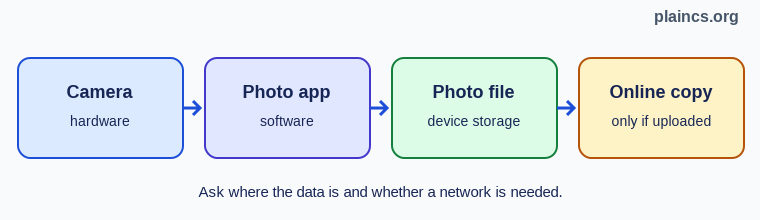
The camera lens and sensor are hardware: physical parts you can touch. The camera app is software: instructions that run on the device. The photograph is data. The same photograph may later be opened by a different app. Keeping these terms separate helps when something fails. A broken sensor, a faulty app, and a damaged file are different problems.
The boundaries are not always visible. When you tap Share, your phone might send the photograph directly to another device, or upload it to a service that runs on computers elsewhere. The screen may look similar in both cases. Ask where the data is now, which program is handling it, and whether a network is needed. Those questions are more useful than guessing from an icon.
Worked example. You take a photo while offline. The sensor captures light; the app processes it; a file is saved on the phone. You can view it without internet access. If you later turn on cloud photo backup, a copy may be sent to a remote service. The original and the remote copy may then follow different deletion and recovery rules.
Check. If you uninstall a photo app, are all your photos necessarily deleted? Answer: No. App removal and file deletion are different operations, though an app may store some data inside its own storage. Check the app and device before relying on either outcome.
1.3 Files, folders, paths, and formats
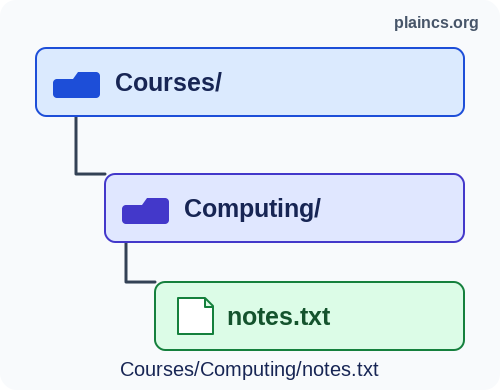
A file is a named collection of data. A folder helps organize files. A path tells you where to look, such as Courses/Computing/notes.txt. The exact separators differ between systems, but the idea is the same: each part narrows the location. Two files can share a name if they are in different folders. That is why “I saved it” does not always answer “Where is it?”
The part after the final dot is often a file extension. It helps people and software guess the format. A .png file is usually a raster image; a .pdf file is usually a document in PDF format. Renaming photo.png to photo.pdf changes its name, not its internal structure. A real conversion needs a program that reads one format and writes another.
Practice safely. Make a folder called Computing practice and put a harmless text file in it. Rename the file, copy it, move the copy into another folder, then locate both. If you are using a shared device or a phone, draw the folder tree on paper instead. Do not practice on a file you cannot replace. If you accidentally delete the practice file, look for your system’s Trash or Recycle Bin; recovery is possible only if the file is still there or backed up.
Check. A downloaded file cannot be found on the desktop. Has it vanished? Answer: Not necessarily. It may be in Downloads or another chosen folder. Search by name, then confirm its location before making another copy.
1.4 Working locally and working online
A browser is a program on your device. It can show a website, but it can also open a file that is already on your device. A search engine is a website that helps you find other pages. The internet is the network that connects your device to computers elsewhere. These are different things, even though you may use all of them in one task.
Now imagine writing a note in your browser. One note app saves a file on your device. Another sends your changes to an online service, which keeps the note on its own computers under your account. Both can show the same words on the same screen. The way the note looks does not tell you where its lasting copy is stored.
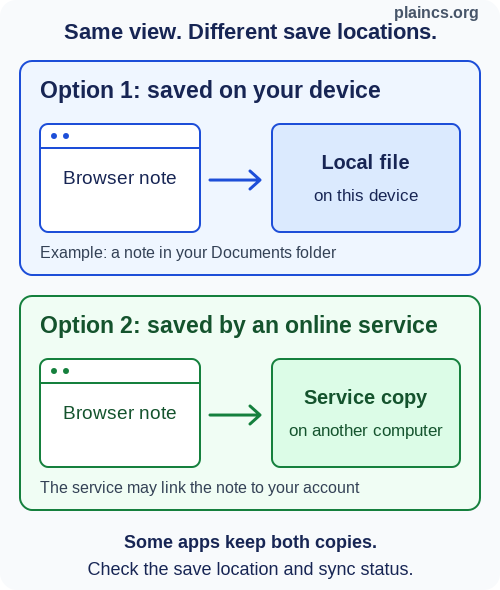
A local file can usually be opened without a network if you have an app that can read it. An online note normally needs a connection to reach the service. Some apps also keep a copy on your device, so you can work offline and send changes later. Until that synchronization finishes, the online copy may be older than the one you see. A temporary browser copy is not necessarily a file you can find or recover later.
Worked example. On a train without internet access, you can open a note saved in your device’s Documents folder. You might also be able to edit a note from an online service if that app supports offline work. When the connection returns, check that the app says your changes have synchronized. If your device is lost, a local note needs a separate backup; an online note needs access to the service and your account. Neither arrangement removes every risk.
When the location matters, look for the file’s path, the app’s save or sync status, and its download or export option. Do not use the presence of a browser window as your answer.
Module activity. Draw a map of a fictional learner’s photo, note, and downloaded PDF. For each item, write its device or service, file name if known, and whether it needs a network to open. If the location is unknown, write “unknown”; that is an honest answer and a useful next question.
Check. A note is visible in your browser while you are offline. Does that prove a saved file exists in your Documents folder? Answer: No. The app may be showing a cached or offline copy. Check the app’s save location or export it if you need a file you control.
In the next module, we will ask how a computer can store such different things as text, photographs, and sound.